Tutorial · AI Assistants
How to use Claude: a beginner's guide to the web, desktop and mobile apps, plans, projects and models
New to Claude? How to start on the web, desktop or phone, pick a model, use projects, memory and incognito chats, and which plan you need, from Anthropic's help pages.

The short answer
To use Claude, go to claude.ai in a browser, or install the Claude Desktop app for Mac or Windows or the Claude app for iPhone or Android, and sign in. Type a request in the message box and send it. Click + or type / for more options, and click the model name to switch models. The free plan uses Sonnet and Haiku; Pro costs $20 a month and adds Opus, Research and Claude Code.
Claude is Anthropic’s AI assistant, and getting started takes a couple of minutes: sign in on the web, the desktop app or your phone, type what you need, and send it. The parts that confuse new users come after that, such as which model to pick, what projects are for, what Claude remembers and what happened to Cowork. This tutorial walks through each one using Anthropic’s own help pages and pricing page as of October 2026.
What you need
- A Claude account. Anthropic says you must be at least 18 and in a supported location.
- A browser, computer or phone. Claude runs at claude.ai, in Claude Desktop and in the Claude mobile apps.
- Nothing to pay, to begin with. The free plan covers everything in this guide except where we say a paid plan is needed.
Step 1: Choose where to use Claude
| Where | How to get it | Good for |
|---|---|---|
| Web | Go to claude.ai in any browser | Trying Claude with nothing to install |
| Desktop | Download Claude Desktop for macOS (13 Ventura or later) or Windows (10 or later); a Linux version is in beta | Daily use, local files and longer tasks |
| Mobile | Download the Claude app for iOS or Android | Quick questions, photos and voice on the go |
To install the desktop app, Anthropic’s steps are to go to the Claude downloads page, choose your operating system, click Download, open the file to install it, then launch Claude from Applications on a Mac or the Start menu on Windows and sign in.
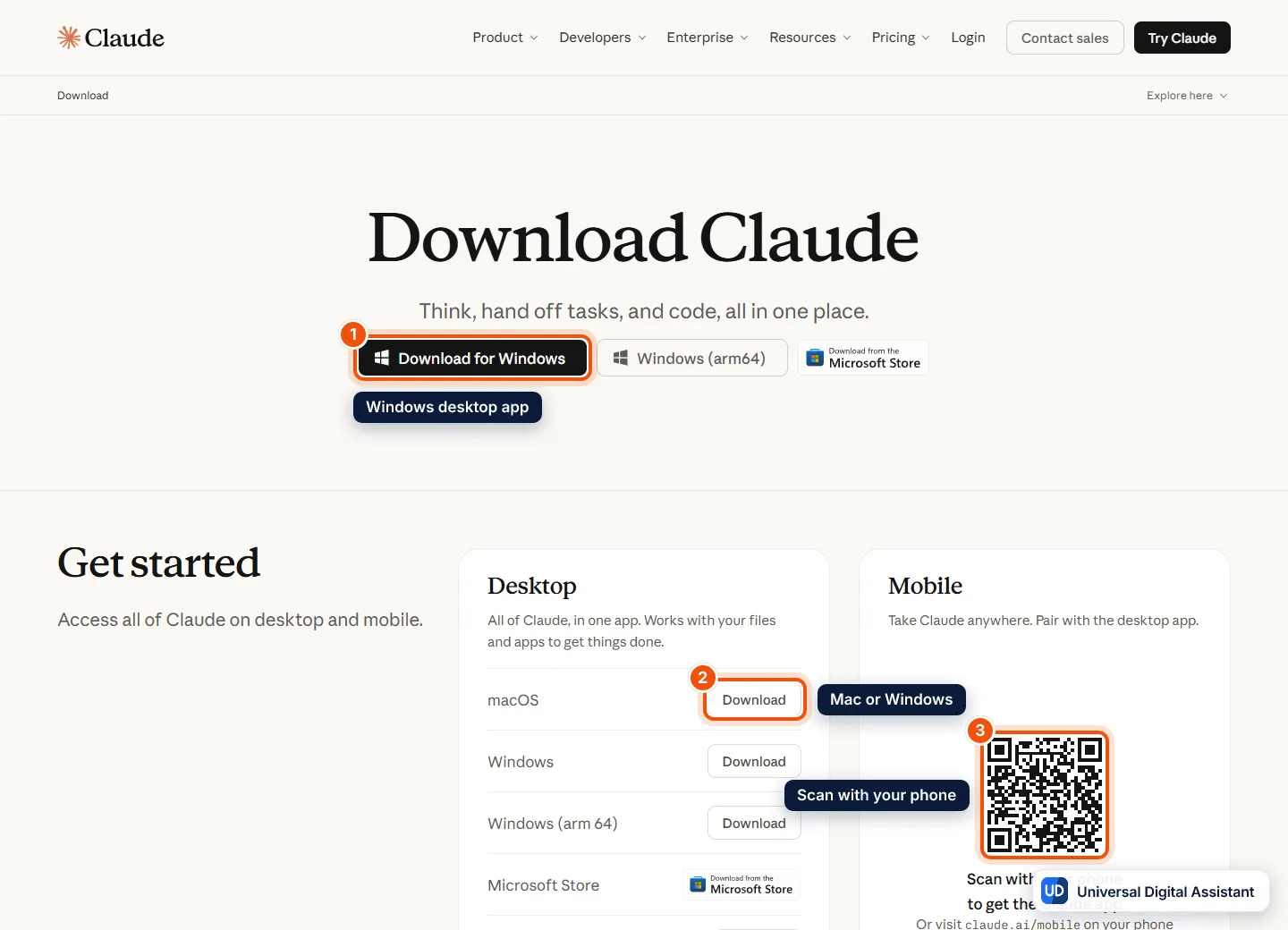
Screenshot: Anthropic’s Download Claude page. Pick the desktop app for your computer (1 or 2), or scan the QR code with your phone to get the mobile app (3). Captured by Universal Digital Assistant on October 20, 2026.
Step 2: Start your first chat
- Open Claude and sign in.
- Type your request in the message box. Anthropic suggests writing conversationally, the way you would brief a coworker or friend.
- Click Submit.
- Ask follow-ups in the same chat to refine the answer.
Two shortcuts are worth learning on day one. Click the + button at the lower left of the message box, or type /, to see extra options and commands, such as adding files or starting research. Anthropic’s own beginner tips are simple: start with straightforward questions, be specific about what you want, iterate with follow-ups rather than starting over, and try different kinds of tasks, from quick questions to bigger pieces of work.
Step 3: Pick a model
Claude runs on several models, and the current one is shown below the message box on the web and desktop, or at the top of the screen on mobile. Click it to open the model selector. From the same place you can change how much effort Claude puts into a reply and turn extended thinking on or off.
As of October 2026, Anthropic’s pricing page lists its latest models as Fable 5.1, Opus 5.5, Sonnet 5.5 and Haiku 5.5, which launched on October 7, 2026 as Anthropic’s cheapest, fastest small model. Which ones you can choose depends on your plan:
- Free: Sonnet and Haiku.
- Pro: Sonnet, Haiku and Opus, with Fable billed through usage credits.
- Max: all of the above, with Fable included in the plan.
For most everyday questions the default is fine. Our guide to Claude models explained covers what each model is for, and our launch reports on Claude Opus 5.5 and Claude Sonnet 5.5 explain the newest two.
Step 4: Use projects to keep work together
A project groups related chats with shared files and instructions, so you don’t have to re-explain the background every time. Projects are available on every plan, and free users can create up to five.
- Open Projects from the left side of Claude, or go to claude.ai/projects.
- Click + New Project at the top right.
- Enter a name and description. Anthropic notes that Claude can’t see these; they’re for you.
- Add files with the + button in the project’s knowledge area. Anything you upload there is used across every chat in that project.
- Select Set project instructions to tell Claude how to behave in the project, for example “answer as a patient tutor” or “always use UK spelling”, and save.
- Start a chat inside the project.
Each project also has its own memory. If you want a project kept separate from everything else Claude knows about you, turn off Use account memory under Memory on the project’s page.
Step 5: Understand memory and incognito chats
Memory is on by default on the Free, Pro and Max plans. Claude builds it from your chats, and everything it remembers is listed under Topics in Settings, then Memory, where you can read, edit or delete any item. The main toggle there, Generate memory from chats, lets you pause memory or reset it completely. Anthropic says sensitive subjects such as health, religion or politics stay out of memory unless you turn on Include sensitive topics in memory. Searching and referencing past chats is a paid-plan feature.
For a one-off conversation you don’t want saved, use an incognito chat. Start a new chat outside a project and click the ghost icon in the upper right; the chat gets a black border and an “Incognito chat” label. It won’t appear in your history, won’t use or add to memory, and Anthropic says it isn’t used to improve Claude. Incognito chats open in the previous chat experience, so Claude can’t create files or run code in them. Our guide to Claude Design, Slides and Docs covers what Claude can create in a normal chat.
Step 6: Hand Claude bigger tasks
Claude can do more than answer questions. On September 16, 2026, Anthropic merged Claude Cowork, its agent for multi-step work, into the main conversation, rolling out gradually to Pro and Max on web, desktop and mobile. There’s no separate mode to choose: you describe the outcome you want, “the way you’d brief a colleague” in Anthropic’s words, and Claude decides whether to reply directly or work through the task and hand back editable files such as reports, spreadsheets and presentations. For research, type /deep-research or click + and choose Research, which needs a paid plan.
Work on your local files, the built-in browser and computer use only run while Claude Desktop is open, while scheduled and longer tasks can run in the cloud. Read What is Claude Cowork? for the safety settings, and our news story on the Cowork and chat merge for what changed. If you write code, how to use Claude Code covers Anthropic’s coding tool, which comes with Pro and above.
Which plan do you need?
| Plan | US price | What it adds |
|---|---|---|
| Free | $0 | Chat on web, desktop and mobile; web search; file creation and code execution; memory; connectors; artifacts; Sonnet and Haiku; up to five projects |
| Pro | $20 a month, or $17 a month billed annually ($200 upfront) | More usage, Opus, Research, Claude Code, projects beyond the free plan’s five, hand-off and scheduled tasks, Claude in Chrome and Microsoft 365 |
| Max | From $100 a month | Five or twenty times Pro’s usage, with Fable included |
| Team and Enterprise | Team from $20 a seat a month billed annually; Enterprise from $20 a seat plus usage at API rates | Administration and security controls for organisations |
The free plan has a session-based limit that resets every five hours. If you hit it often, or want Opus or Research, Pro is the next step. Our Claude Pro vs Max guide explains the limits in detail.
Tips for getting better answers
- Give context up front. Say who the answer is for, how long it should be and what format you want.
- Attach the source material. Use + to add a document or image rather than pasting fragments.
- Keep one topic per chat, or use a project, so Claude isn’t mixing unrelated threads.
- Bring your context with you. Anthropic says Free, Pro and Max users can import memory from other AI assistants, though not full chat histories.
- Check important facts. Claude can be wrong, so verify anything you’ll rely on, especially numbers and quotes.
Where to go next
For the assistant as a whole, see the Claude profile. If you’re still deciding between assistants, compare ChatGPT vs Claude and Claude vs Gemini, or read our three-way ChatGPT vs Claude vs Gemini comparison and our guide to choosing an AI assistant.
Frequently asked questions
Is Claude free to use?
Yes. Claude's free plan works on the web, desktop and mobile apps and includes web search, file creation, memory, connectors, artifacts, voice mode, incognito chats and up to five projects. It uses the Sonnet and Haiku models, with a usage limit that resets every five hours.
Where can I use Claude?
In a web browser at claude.ai, in the Claude Desktop app for macOS and Windows (with a Linux version in beta), and in the Claude app for iOS and Android. Anthropic says you must be at least 18 and in a supported location.
How do I change the model in Claude?
Click the model name. On the web and desktop it sits below the message box, and on mobile it is at the top of the screen. The model selector also lets you adjust how much effort Claude puts into a response and whether it uses extended thinking.
What is a Claude project?
A project is a workspace that keeps related chats together with shared files and instructions. Anything you upload to a project's knowledge is used across all chats in that project, and each project has its own memory. Free users can create up to five projects.
Does Claude remember my previous chats?
Memory is on by default on the Free, Pro and Max plans. You can see and edit everything Claude remembers under Settings, then Memory, then Topics, or pause or reset memory there. Searching past chats is available on paid plans.
What happened to Claude Cowork?
Since September 16, 2026, Cowork is part of the main Claude conversation, rolling out first to Pro and Max. You describe a bigger task in a normal chat, and Claude decides whether to answer directly or work through it and hand back files.
Which Claude plan should a beginner choose?
Start on Free. Move to Pro, at $20 a month or $17 a month billed annually, if you keep hitting the five-hour limit or want Opus, Research, Claude Code or more than five projects. Max, from $100 a month, is for heavy daily use.
Sources
Product facts are checked against the vendor's own announcements and documentation.
- Get started with Claude — Claude Help Centerhttps://support.claude.com/en/articles/8114491-get-started-with-claude
- Install Claude Desktop — Claude Help Centerhttps://support.claude.com/en/articles/10065433-install-claude-desktop
- How can I create and manage projects? — Claude Help Centerhttps://support.claude.com/en/articles/9519177-how-can-i-create-and-manage-projects
- Claude Cowork and chat are one Claude — Claude Help Centerhttps://support.claude.com/en/articles/16761823-claude-cowork-and-chat-are-one-claude
- Release notes — Claude Help Centerhttps://support.claude.com/en/articles/12138966-release-notes
- Claude plans and pricing — Anthropichttps://claude.com/pricing


