Guide · Productivity
What is NotebookLM? Google's AI research notebook, now called Gemini Notebook
NotebookLM is Google's AI research notebook, renamed Gemini Notebook in July 2026. See what it does, Audio Overviews, source limits per plan and privacy.

The short answer
NotebookLM is Google's AI research notebook, renamed Gemini Notebook on July 16, 2026. You add your own sources, such as PDFs, Google Docs, websites and YouTube videos, and it answers questions using only those sources, with citations. It can also turn them into Audio and Video Overviews, reports, mind maps, flashcards, quizzes and slide decks. It is free, with higher limits on Google AI plans.
NotebookLM is Google’s AI research notebook: you give it your own documents, links and videos, and it answers questions about them with citations, then turns them into summaries, study aids and podcast-style audio. If you go looking for it now, you’ll find it under a new name. Google renamed NotebookLM to Gemini Notebook on July 16, 2026. This guide explains what it does, what changed with the rename, what you get on each plan and how Google handles your data, based on Google’s blog and the Gemini Notebook Help pages as of October 2026.
NotebookLM at a glance
| Detail | Gemini Notebook (formerly NotebookLM) |
|---|---|
| What it is | An AI research assistant grounded in sources you add |
| Made by | |
| First shown | Google I/O 2023, as Project Tailwind |
| Renamed | July 16, 2026, from NotebookLM to Gemini Notebook |
| Where | Web, Android app (Android 10 and up), iPhone and iPad app, inside the Gemini app and AI Mode in Search |
| Price | Free; higher limits with Google AI Plus ($4.99 a month), Pro ($19.99) and Ultra (from $99.99) in the US |
| Languages | 80+ |
What NotebookLM does
Google’s help center describes Gemini Notebook as “an AI-powered research assistant designed to help you refine and organize your ideas.” The idea is that the AI works from your material rather than the open web. You create a notebook, add sources, and then:
- Chat with your sources. Google says chat answers “only use data from your sources,” and each answer cites direct quotes, text and images from them. Hover over a citation to see the full quote, or click it to jump to that spot in the source.
- Generate study and work outputs from the Studio panel, such as Audio and Video Overviews, reports, mind maps, flashcards, quizzes, infographics and slide decks.
- Take notes alongside your sources and share the notebook with others.
That grounding is the main difference from a general chatbot like the Gemini app: it’s built for reading a pile of papers, notes or transcripts and finding what is in them, with the receipts.
What changed when it became Gemini Notebook
In Google’s announcement, Josh Woodward, who runs Google Labs and the Gemini app, said the product “remains a standalone product focused on being your premier research tool,” but “will now do more across the Google ecosystem, including inside the Gemini app and Google Search.” The practical changes:
- A new name and logo, rolled out gradually from July 16. Google’s Workspace team said mobile users may need to update their app, and that “automatic redirects will ensure existing shared notebooks and user links continue to work.”
- A cloud computer in every notebook. Google says the update “gives every notebook a secure cloud computer” so Gemini Notebook can write and run code for data analysis grounded in your sources. It launched for Google AI Ultra and eligible Workspace business customers, with Google saying it would reach all Pro users on the web over the following weeks.
- Notebooks in the Gemini app. Notebooks you make in Gemini Notebook appear in Gemini, where you can view, edit and chat with them. Renaming a notebook, adding sources or changing custom instructions in one place carries over to the other.
- Notebooks in AI Mode. Your notebooks now also appear in AI Mode in Google Search, though only in English and not in the European Economic Area for now.
You’ll still see “NotebookLM” in some Google pages and URLs, and in plenty of tutorials, so it helps to know the two names mean the same thing.
What sources you can add
Google’s list of supported sources is broad:
- Files: PDF, Word (.docx), text, Markdown, CSV, PowerPoint (.pptx), ePub, images and audio files
- Google content: Docs, Slides, Sheets, Play Books and Gemini chats
- Web content: website URLs and public YouTube videos
- Your own text: copied and pasted text, and notes
Each source can contain up to 500,000 words, or up to 200MB for uploaded files. If you don’t have sources yet, the Sources panel can find some. Fast Research searches the web or your Drive and lets you import results, while Deep Research takes a few minutes to produce a report plus the sources behind it, which you can pick from. Google says Deep Research is limited to users over 18.
What NotebookLM can create
| Output | What Google says it does |
|---|---|
| Audio Overview | An AI-hosted discussion of your sources in four formats: Deep Dive (two hosts, the default), Brief (one speaker), Critique and Debate. Shorter, default or longer lengths; 80+ languages |
| Interactive Audio Overview | Join the conversation by voice and ask the hosts questions; English only |
| Video Overview | Cinematic, Explainer or Short (~60 seconds) videos, with styles such as Whiteboard, Watercolor and Anime; Cinematic is English only and for 18+ |
| Reports | Interactive or Document reports from templates, such as a Learning Overview; web only |
| Mind maps, flashcards, quizzes, infographics, slide decks | Visual and study formats built from your sources |
Google notes that Audio and Video Overviews can contain inaccuracies or audio glitches, and both can take a few minutes to generate in the background. For chat, you can also choose a style under Configure Chat: Default, Learning Guide or Custom, such as asking it to respond like a PhD student, plus a response length.
How to start a notebook
According to Google’s help pages:
- Open Gemini Notebook on the web at notebook.google.com, or in the mobile app.
- Select Create new notebook.
- In the pop-up, select Upload a source, then pick the files or links you want, or discover new sources.
- Ask a question in the Chat panel, or pick an output in the Studio panel.
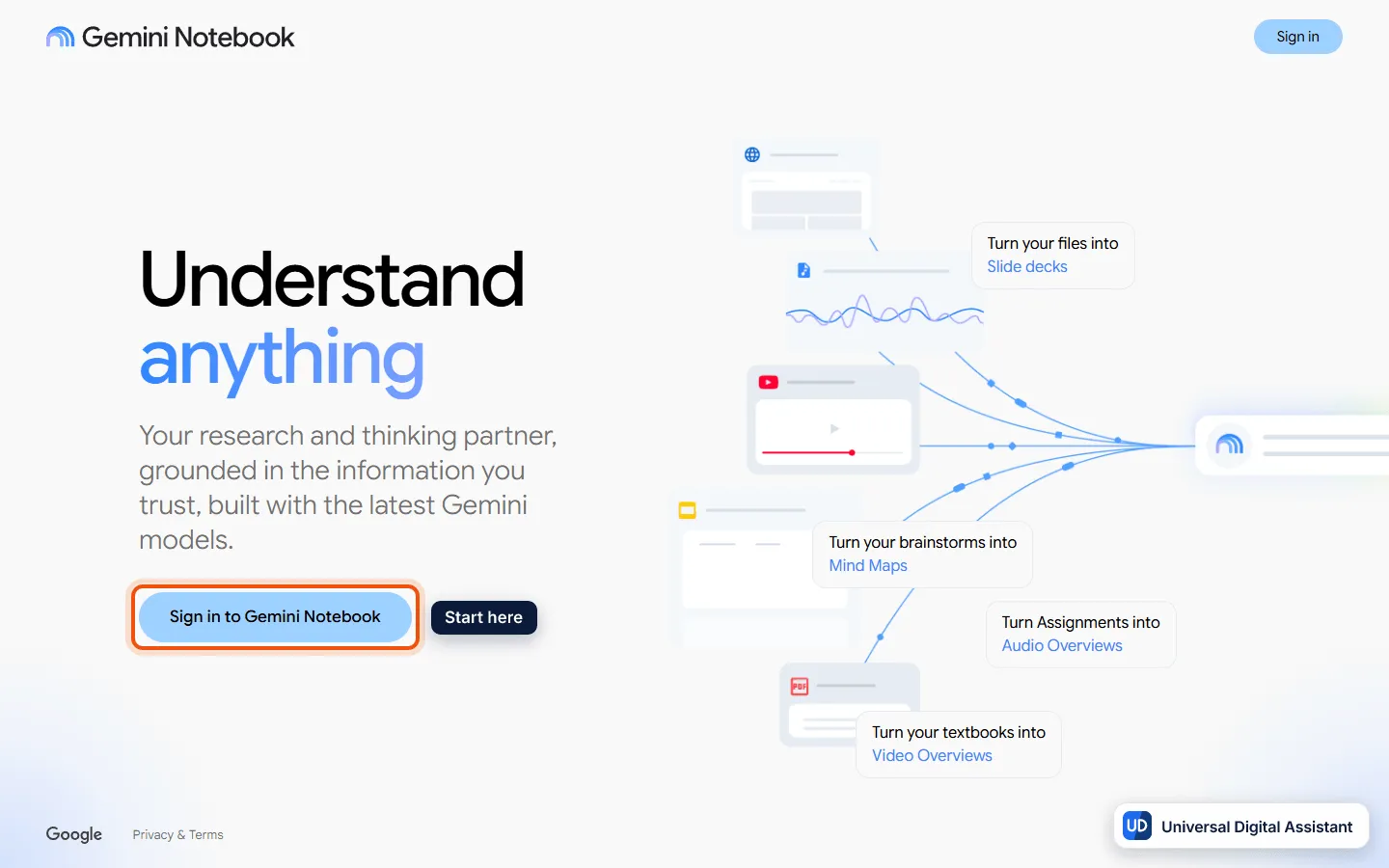
Screenshot: the Gemini Notebook home page, signed out. Select Sign in to Gemini Notebook with your Google Account to reach your notebooks. Captured by Universal Digital Assistant on October 20, 2026.
To share, add someone’s email as a Viewer (read-only) or Editor (can add or remove sources and notes), make the notebook public for anyone with a Google account, or copy a chat-only link. Google warns that viewers of a chat-only link may still be able to reach the sources.
Plans and limits
Gemini Notebook is free, and the Google AI plans raise its limits. Google’s plan page lists:
| Plan | Notebooks | Sources per notebook | Usage limits |
|---|---|---|---|
| Standard (free) | 100 | 50 | Standard |
| Google AI Plus | 200 | 100 | 2x standard |
| Google AI Pro | 500 | 300 | 4x standard |
| Google AI Ultra (20 TB) | 500 | 500 | 5x Pro |
| Google AI Ultra (30 TB) | 500 | 600 | 20x Pro |
Limits are compute-based, so how fast you hit them depends on the features and models you use and the length of your chats. When you reach one, Google says the quota “refreshes every 5 hours until you reach your weekly limit,” and warns limits may change. Paid plans also get advanced sharing, and Pro and Ultra can remove the visible watermark on outputs, except in India, South Korea and Vietnam, where it’s always applied. US prices are $4.99 a month for Plus, $19.99 for Pro and $99.99 or $199.99 for the two Ultra tiers; our Google AI Plus vs Pro vs Ultra guide covers what else each plan includes.
Who can use it
Google says Gemini Notebook works in the browser for users above the age of consent in supported countries, and asks you to verify your age in your Google Account first. Under-18 users get stricter content policies, and some features are 18+ only. Most work and school accounts have access if their admin turns it on, and on Workspace for Education it’s available to users of all ages. The mobile app may have different availability from the web.
Privacy
Google’s privacy page says content in Gemini Notebook “will not be used to directly train our foundational AI models, unless you choose to provide feedback.” Feedback can be reviewed by trained teams after it’s disconnected from your account, and kept for up to three years. For Workspace and Workspace for Education users, Google goes further: uploads, queries and responses aren’t reviewed by humans even when you rate an answer, and aren’t used to train models. Chat history is private to you, and you can clear it from the chat panel’s three-dots menu with Delete Chat History.
Who NotebookLM suits
- Students turning lecture notes and readings into study guides, flashcards and quizzes.
- Researchers and analysts who need answers that point to an exact passage.
- Anyone who learns by listening, through Audio Overviews on a commute.
It’s less useful for open-ended questions about the wider world, where a web-first tool such as Perplexity or the regular Gemini app makes more sense. We haven’t tested the new cloud computer features. For other ways AI can help with everyday work, see ways to be more productive with AI, and for Google’s agent that works on tasks in the background, read what is Gemini Spark.
Frequently asked questions
Is NotebookLM the same as Gemini Notebook?
Yes. Google renamed NotebookLM to Gemini Notebook on July 16, 2026. Google says it remains a standalone research product, and that automatic redirects keep existing shared notebooks and links working. The new name and logo rolled out over several weeks, and mobile users may need to update the app.
Is NotebookLM free?
Yes. Gemini Notebook is free with a Google Account, with 100 notebooks and 50 sources per notebook on the standard tier. Google AI Plus, Pro and Ultra raise those numbers and multiply the usage limits, up to 500 notebooks and 600 sources per notebook on the top Ultra plan.
What sources can I add to NotebookLM?
Google lists PDFs, Word, text, Markdown, CSV and PowerPoint files, Google Docs, Slides and Sheets, web URLs, public YouTube videos, audio files, images, ePub files, Play Books, copied text, notes and Gemini chats. Each source can hold up to 500,000 words, or up to 200MB for uploaded files.
What is an Audio Overview?
An Audio Overview is an AI-generated discussion of your sources. The default Deep Dive has two AI hosts; there are also Brief, Critique and Debate formats. You can pick a shorter or longer length, choose from over 80 languages, and in English join an interactive version to ask the hosts questions.
Does NotebookLM search the web?
Google says chat answers use only data from your sources. Separately, you can use Fast Research or Deep Research in the Sources panel to find web or Drive material and import it into the notebook, and the newer agentic features can search the web or run code.
Does Google train its AI on my NotebookLM sources?
Google's privacy page says Gemini Notebook content is not used to directly train its foundation models unless you choose to give feedback, which may be reviewed by trained teams. For Workspace and Workspace for Education accounts, uploads, queries and responses are not human-reviewed or used to train models.
Can I use NotebookLM in the Gemini app?
Yes. Notebooks you create in Gemini Notebook also appear in the Gemini app, where you can view, edit and chat with them, and changes sync both ways. Notebooks also appear in AI Mode in Google Search, in English, in supported countries outside the European Economic Area.
Sources
Product facts are checked against the vendor's own announcements and documentation.
- NotebookLM is now Gemini Notebook — Googlehttps://blog.google/innovation-and-ai/products/gemini-notebook/notebooklm-gemini-notebook/
- NotebookLM is now Gemini Notebook — Google Workspace Updateshttps://workspaceupdates.googleblog.com/2026/07/notebooklm-now-gemini-notebook.html
- Learn about Gemini Notebook's plans — Gemini Notebook Helphttps://support.google.com/gemininotebook/answer/16213268?hl=en
- Add or discover new sources for your notebook — Gemini Notebook Helphttps://support.google.com/gemininotebook/answer/16215270?hl=en
- Generate Audio Overview in Gemini Notebook — Gemini Notebook Helphttps://support.google.com/gemininotebook/answer/16212820?hl=en
- Privacy and Terms of Use in Gemini Notebook — Gemini Notebook Helphttps://support.google.com/gemininotebook/answer/17004255?hl=en


