Tutorial · AI Assistants
How to use Perplexity: search, Pro Search, Research, Projects and the apps explained
Learn how to use Perplexity step by step: ask cited questions, switch to Pro Search or Research, pick sources and models, upload files and organize Projects.

The short answer
To use Perplexity, go to perplexity.ai or open the app, type a question in plain language and press enter. Perplexity searches the web and answers with numbered citations, and follow-up questions stay in the same session. For harder questions, switch the mode to Pro Search or Research, choose sources such as Web or Academic, attach files, and group related work in Projects.
Perplexity is an AI answer engine: you ask a question in plain language, and it searches the web, writes an answer and shows you where each part came from with numbered citations. It’s easy to start with, but there’s more under the hood, from deeper search modes to file uploads, Projects and memory. This tutorial walks through the basics and the features worth knowing, using Perplexity’s own help center as of October 2026. Perplexity changes its interface often, so labels may differ slightly on your screen.
What you need
- A browser or the app. Perplexity runs on the web at perplexity.ai, on iPhone and Android, and as a desktop app for Windows and Mac.
- An account, ideally. You can search without signing in, but Perplexity says signed-out sessions are anonymous and disappear after 14 days. Signing in saves everything to your History.
- A paid plan, optionally. The free plan covers everyday questions. See the plans table below.
Step 1: Ask your first question
- Go to perplexity.ai, or open the app, and sign in.
- Type a question into the search box on the home page. Full sentences work best when context matters; Perplexity says two or three keywords are fine for a quick answer.
- Press enter and read the answer. The numbers in the text are citations; select one to see the source.
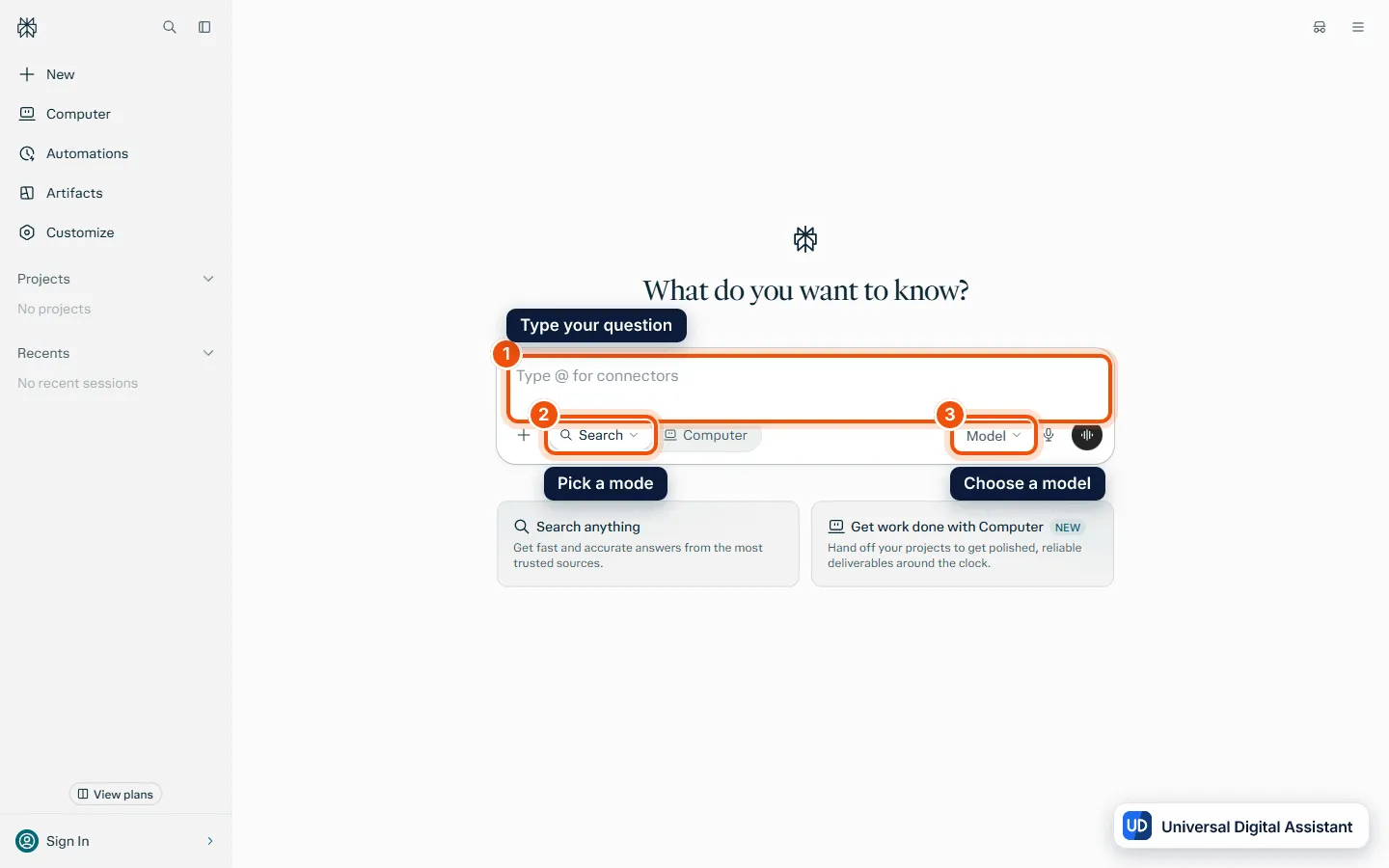
Screenshot: the Perplexity home page at perplexity.ai, signed out. Type your question in the box (1); the mode menu (2) and the model menu (3) sit underneath it. Captured by Universal Digital Assistant on October 20, 2026.
Perplexity’s own starter examples give a sense of range: “Create a healthy recipe with Mexican flavors,” “What are the best headphones for running?” and “Create an introduction to Python with example syntax and fundamentals.”
Step 2: Ask follow-ups in the same session
Each question starts a session, which keeps your question, follow-ups, Perplexity’s answers and every source together. Keep typing in the same session to refine the answer (“make it cheaper,” “only options under $100”) without repeating the background. Under each answer, Perplexity’s help center lists a handful of tools:
- Export the answer as PDF, Markdown or DOCX.
- Rewrite to generate a new answer with a different model.
- Sources to see which model, search mode and sources were used.
- Copy, feedback and an edit icon on your original question.
Step 3: Pick the right search mode
Paid subscribers can choose a mode in the search box. Here’s how Perplexity describes each:
| Mode | What it does | Best for |
|---|---|---|
| Basic search | A fast answer, usually from one or two sources | Quick facts |
| Pro Search | Multiple searches across dozens of sources, with model choice and a code interpreter | Research, analysis, complex questions |
| Research | Dozens of searches, hundreds of sources and a full written report, typically in a few minutes | Expert-level deep dives on finance, health, travel, technology and more |
| Create files and apps | Builds reports, spreadsheets, dashboards, presentations and simple web apps from a prompt | Finished deliverables |
Research picks its own combination of models, so you can’t choose one there. Its reports can be exported as a PDF or document, or converted into a shareable Perplexity Page. Free users get a little of each: Perplexity’s plan table lists 3 Pro Searches a day and 1 Research query a month.
Step 4: Choose sources and a model
Sources. Select Choose sources in the search bar to steer where answers come from, such as Web or Academic; Perplexity’s Pro Search page also mentions Finance and your own files. If you’re signed into an Enterprise organization, the options are different.
Model. By default the model menu says Best, which lets Perplexity pick a suitable model for each question. On a paid plan, open the model dropdown in the bottom right of the prompt box, select Custom, and choose a model along with reasoning and speed options. Perplexity’s pricing page says it picks from models made by OpenAI, Google, Anthropic and NVIDIA, and that Pro and Max can select a preferred model. The exact list changes often, so check the menu.
Step 5: Upload files and images
Click Attach (the plus button) in the search bar, or drag and drop files and even folders. Perplexity accepts plain text, code, PDFs, images, audio and video, and transcribes speech in audio and video files, labeling who said what. It doesn’t index the visual scenes in videos. Short files are read in full; for long ones, Perplexity pulls out the most relevant parts.
Two limits to know: each file can be up to 40 MB, and uploads count against a rolling weekly allowance on every plan, including images and files added from connected apps such as Google Drive. Each upload stops counting about a week after you add it.
Step 6: Organize work in Projects
A Project keeps related sessions, files, instructions and connected tools in one place. To make one, select Projects in the left sidebar, then New project, and give it a title. You can then add instructions (up to 8,000 characters) that apply to everything in it, upload files, and invite collaborators as viewers or editors.
Perplexity’s help center says Projects are private by default, there’s no limit on how many you create, and each one holds up to 10,000 files and 5 GB, with each file up to 100 MB. A Project can have up to 5 contributors on a personal account, or far more for organizations and verified students and educators. You can also turn an existing session into a Project.
Step 7: Find, share and delete past searches
Every signed-in session goes to your History at perplexity.ai/library, which only you can see. From there you can search old sessions, filter by mode, add a session to a Project, or delete one or all of them. Perplexity warns that deleted sessions can’t be recovered.
To share, select Share at the top right. Sessions start out Private; switch to Anyone with the link to make one viewable. If someone asks a follow-up on a shared session, it starts a new session for them rather than changing yours.
Step 8: Manage memory and privacy
Perplexity can remember your preferences between sessions. Go to Settings, then Memory, to:
- Toggle Use search history and saved notes on or off separately.
- Open Manage memories to search and delete individual entries, or clear them all.
Turning memory off stops Perplexity using it but doesn’t delete what’s saved. Incognito mode never uses or keeps memories. Perplexity also says it may use memory content to improve its models; to opt out, turn off AI Data Retention in Settings, under Preferences, then Artificial Intelligence.
Using Perplexity on your phone and computer
- iPhone: tap the voice icon in the input box to start a voice session, which is saved to your History. You can also set the Action Button to a Perplexity shortcut such as “Start voice conversation.”
- Android: Perplexity can be set as your default assistant, then opened by swiping from the bottom-left corner toward the center of the screen, or by holding the power or home button, depending on your phone.
- Windows and Mac: the new desktop app adds local abilities, such as working with files in folders you choose and a floating task bar. Perplexity says the old Windows app stopped working on October 15, 2026 and doesn’t upgrade automatically, so install the new one and sign in.
Perplexity plans
| Plan | Price (US) | Key limits, per Perplexity’s help center |
|---|---|---|
| Free | $0 | Practically unlimited basic searches, 3 Pro Searches a day, 1 Research query a month |
| Pro | $17 a month billed annually | Weekly and monthly limits for average use, model choice, image generation, Perplexity Computer |
| Education Pro | $10 a month with student or educator verification | Everything in Pro, plus Learn Mode |
| Max | $200 a month, or $2,000 a year | Limits for advanced use, newest models, early access, Brain memory for Computer |
Paid plans also include Perplexity Computer, the agent that carries out multi-step work on credits. Ask searches don’t use credits; our guide to what Perplexity Computer is explains how the credits work. We haven’t tested every plan.
Tips for better answers
- Give context. Say who it’s for and what you’ll do with it, such as “for a beginner” or “for a 10-minute talk.”
- Check the citations on anything important. Perplexity itself says you should validate information against the linked sources.
- Use Research sparingly if you’re on the free plan, since you get one a month.
- Use a Project for anything you’ll come back to, so the files and instructions are there next time.
Where to go next
To see how Perplexity stacks up against OpenAI’s assistant, read Perplexity vs ChatGPT, or start with our Perplexity profile. Perplexity also makes the Comet browser, which we cover in the best AI browsers. If your research is mostly in your own documents rather than on the web, Google’s NotebookLM, now Gemini Notebook, works from sources you upload. Still deciding? Our guide to choosing an AI assistant can help.
Frequently asked questions
Is Perplexity free to use?
Yes. Perplexity's help center says the free plan includes practically unlimited basic searches, 3 Pro Searches a day, 1 Research query a month, limited file uploads and search history. Pro and Max raise those limits and add model choice and image generation.
What is the difference between a basic search and Pro Search?
Perplexity says a basic search gives a fast answer from one or two sources and is best for quick facts. Pro Search takes longer, draws on dozens of sources, lets subscribers choose an AI model and includes a code interpreter. It suits research, analysis and complex questions.
What is Research mode in Perplexity?
Research, Perplexity's deep research mode, runs dozens of searches, reads hundreds of sources and writes a full report, usually in a few minutes. You pick it from the mode selector. It chooses its own models, and you can export the report as a PDF or document or turn it into a shareable Page.
Do I need an account to use Perplexity?
No, but sessions you create while signed out are anonymous and only visible for 14 days before they disappear. Sign in and every session is saved to your History at perplexity.ai/library, where it stays until you delete it.
How do I upload a file to Perplexity?
Click Attach (the plus button) in the search bar, or drag and drop files or folders. You can upload text, code, PDFs, images, audio and video, up to 40 MB per file. Uploads have a rolling weekly allowance on every plan, higher on Max than Pro.
How much does Perplexity Pro cost?
Perplexity's pricing page lists Pro at $17 a month when billed annually and Max at $167 a month billed annually. The help center puts Max at $200 a month or $2,000 a year. Verified students and educators can get Education Pro for $10 a month.
Can I turn off Perplexity's memory?
Yes. In Settings, then Memory, you can switch off search history and saved memories separately, and delete individual memories or clear them all. Incognito mode never uses or keeps memories. To stop your data being used to improve models, turn off AI Data Retention in Settings.
Sources
Product facts are checked against the vendor's own announcements and documentation.
- Getting started with Perplexity — Perplexity Help Centerhttps://www.perplexity.ai/help-center/en/articles/10354975-getting-started-with-perplexity
- What is a Session? — Perplexity Help Centerhttps://www.perplexity.ai/help-center/en/articles/10354769-what-is-a-thread
- What is Pro Search? — Perplexity Help Centerhttps://www.perplexity.ai/help-center/en/articles/10352903-what-is-pro-search
- What is Research mode? — Perplexity Help Centerhttps://www.perplexity.ai/help-center/en/articles/10738684-what-is-research-mode
- Which Perplexity Subscription Plan is right for you? — Perplexity Help Centerhttps://www.perplexity.ai/help-center/en/articles/11187416-which-perplexity-subscription-plan-is-right-for-you
- What are Projects? — Perplexity Help Centerhttps://www.perplexity.ai/help-center/en/articles/10352961-what-are-projects


